

Your phone’s calculator app is one of the most boring, unremarkable things on your home screen — nobody ever thinks twice about it. That’s exactly the idea behind Calculator Vault: a fully working calculator on the outside, and a private, encrypted storage vault on the inside.
What Is Calculator Vault?
Calculator Vault looks and behaves like a completely normal calculator — clean Samsung-style light mode design, all standard math functions, even a history of your last 20 calculations. There’s nothing about the icon, the name, or the interface that hints at anything else.
But type a specific sequence into that calculator, and it opens into a private vault where you can securely store photos, videos, and documents — protected by a PIN and real encryption, not just a hidden folder.
Why Use a Vault App at All?
Most people have something on their phone they’d rather keep private — not necessarily anything wrong, just personal. CNIC scans, banking screenshots, medical records, family photos, personal documents you don’t want visible if someone borrows your phone or it gets lost or stolen. A vault app keeps that content out of your gallery and file manager entirely, behind real encryption, without needing a separate hidden app that immediately gives itself away by its name or icon.
How It Works
Getting in: Calculator Vault stays a real calculator until you do one of two things:
- Type
0 ÷ 0 =on the keypad, or - Long-press the
%button for two seconds
Either one opens the vault. Anyone else who picks up your phone and opens the app just sees… a calculator.
Your PIN: A 4-digit PIN protects the vault, shown as dots (not numbers) so nobody can peek over your shoulder and read it.
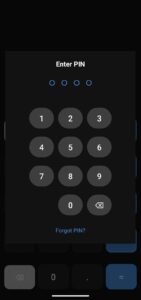
If you forget your PIN, there are three separate ways back in:
- Biometric unlock (fingerprint or face)
- Your phone’s existing screen lock as a fallback
- An 8-character backup recovery code, shown once during setup — write it down somewhere safe
Inside the vault: Your photos, videos, and documents are organized separately, encrypted with AES-256-GCM through the Android Keystore. Add files via a simple “+” button, pulling from your gallery, your file manager, or straight from the camera.

Secure Notes: Beyond files, the vault also includes a built-in encrypted notes section for anything you’d rather jot down privately — passwords, personal reminders, anything text-based you want kept out of your regular notes app.
If someone tries to break in: After 3 wrong PIN attempts, the app silently takes a photo using the front camera and saves it to an “Intruder Alerts” section — so you know if someone’s been trying. After 3 more failed attempts, the app locks itself for 5 minutes.
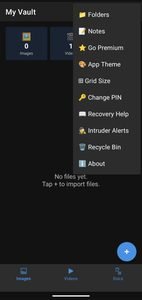
Key Features at a Glance
- Fully functional calculator disguise — zero visible hints
- Two secret unlock methods
- 4-digit PIN with 3 separate recovery options
- AES-256-GCM encryption (Android Keystore)
- Organized vault: Images, Videos, Documents, Notes
- Import from gallery, files, or camera directly
- Silent intruder detection with photo capture
- Recycle bin for deleted files
- Multi-select for bulk actions
- Dark and light theme support
How to Get Calculator Vault
Since this isn’t distributed through the Play Store, you’ll need to allow installation from outside sources on your Android device:
- Download the APK using the link above
- When prompted, allow your browser to “install unknown apps” (Android will ask automatically)
- Open the downloaded file and tap Install
- Once installed, open the app and set up your 4-digit PIN — you’ll be shown your backup recovery code once, so save it somewhere safe
Frequently Asked Questions
Is this safe to install if it’s not on the Play Store? Installing outside the Play Store just requires enabling one permission on your device — it doesn’t mean the app itself is less secure. Calculator Vault uses the same Android Keystore encryption system that Play Store apps use.
What happens if I forget both my PIN and my recovery code? Your biometric unlock or your phone’s screen lock will still get you back in, since those are separate recovery paths that don’t depend on the PIN or the backup code at all.
Can someone tell it’s not a real calculator just by using it? No — every calculation works correctly. There’s no broken button, no lag, no visual tell. The only way in is knowing the exact trigger.
Does it work if my phone is lost or stolen? Your files stay encrypted and inaccessible without your PIN, biometric, or recovery code.
Will taking photos with the in-app camera use up space in my regular gallery too? No — photos taken through the vault’s camera option save directly into the encrypted vault and never appear in your regular gallery.
Final Thoughts
Calculator Vault isn’t about hiding anything wrong — it’s about having a normal, everyday level of privacy on a device that usually has zero. Sensitive documents, personal photos, anything you’d rather keep to yourself stays genuinely private, without needing to explain a suspicious-looking “vault” app sitting on your home screen.
Calculator Vault is currently distributed as a direct APK download. Always download from the official link above, and keep your recovery code somewhere safe.
